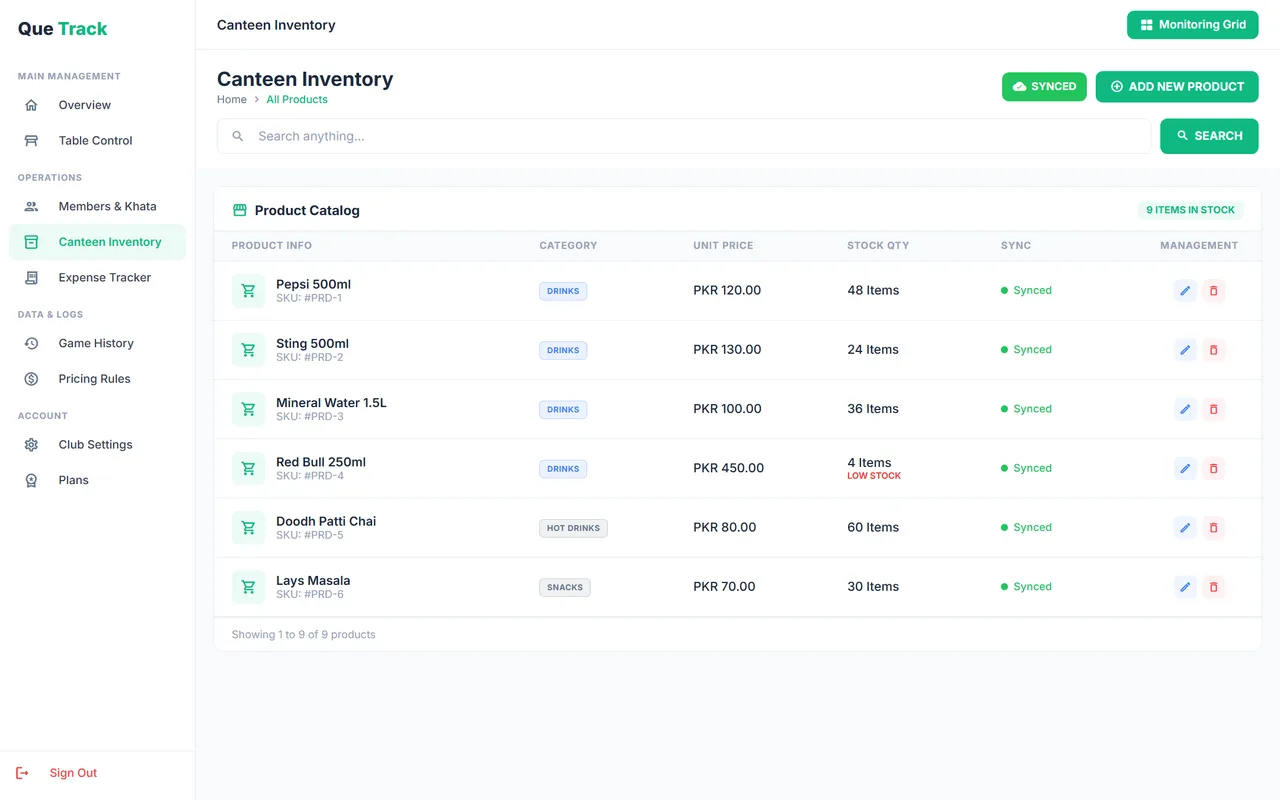
Why put the canteen in the same app
Canteen sales are where small amounts disappear: a drink handed over during a game and never charged, or stock that runs out without anyone noticing. When the canteen lives in the same app as your tables, every item is charged to a table bill and taken out of stock at the same time.
What you can do
- Product list: name, price in PKR, category and quantity in stock.
- Sell on a table: add items to a running table with Ctrl+P. They appear on the table card and in the final bill.
- Stock control: quantities go down as items are sold, low stock (5 or fewer) is flagged, and out-of-stock items are blocked from sale.
- Khata: a member's canteen items can go on their khata with the game bill.
Planning what to stock and how to price it? Read setting up a profitable club canteen.
Canteen POS & stock: common questions
Yes. On a running table, press Inventory (Ctrl+P) and pick the items. They are added to that table's bill and collected together, in cash or on a member's khata.
Yes. Each product has a quantity. Stock goes down when items are sold, products at 5 or fewer show a LOW STOCK badge, and out-of-stock items cannot be added to a bill.
No. QUE TRACK marks low-stock products with a badge in the inventory list rather than sending alerts.
The pricing page lists what each plan includes, including the canteen module and table and member limits.